Updated on 06/06/2026

How to configure carriers with the Stock per Store module

Carrier basics

Shipping methods

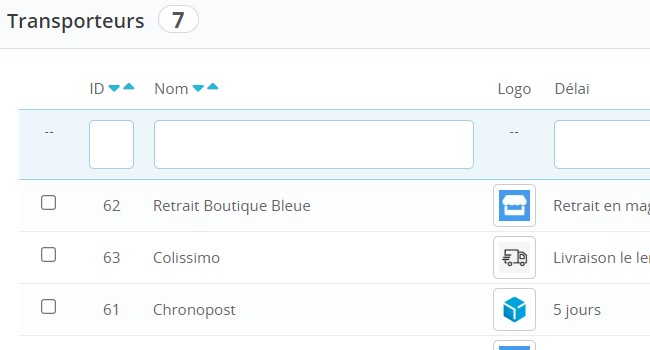
In the PrestaShop back office (Shipping > Carriers menu), you can set up several shipping methods.

See the official tutorials for setting them up here: Shipping & Logistics

All carriers are displayed on the storefront if:

  • they are enabled for the zone linked to the customer's country
  • the product(s) in the cart are not restricted to a specific carrier in the product page options

Note: the Stock per Store module follows this default behavior unless specific options are configured.
The Stock per Store module lets you combine several types of associations between one or more carriers and one or more stores. This means you can efficiently manage:

- in-store pickup

- home delivery 

In-store pickup

Scenario 1: one carrier per store

Concept:

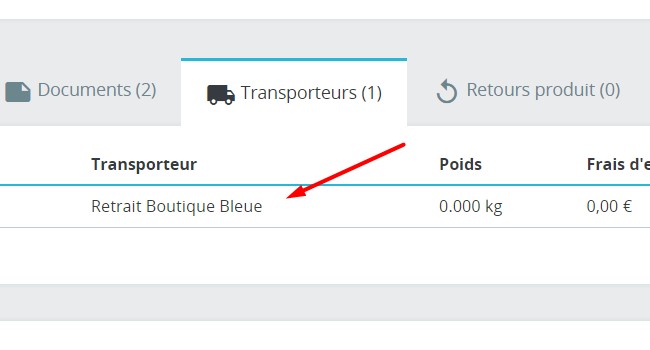
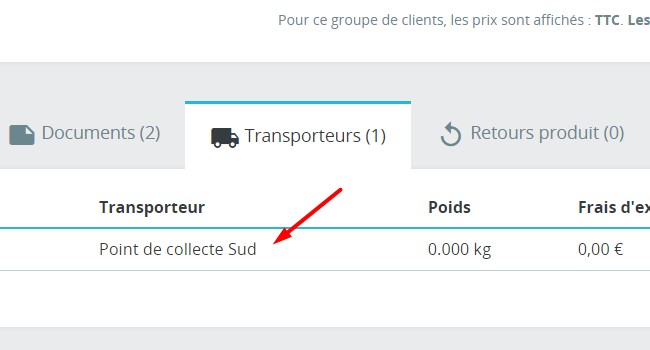
You have several physical stores, and each store is linked to a single PrestaShop carrier used to handle "In-store pickup".

Example:

  • Store 1 is linked only to Carrier 1
  • Store 2 is linked only to Carrier 2
  • Store 3 is linked only to Carrier 3
  • etc.

Your customer:

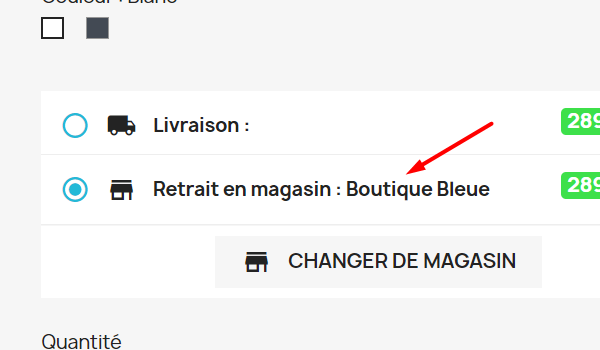
  • chooses a store on the product page
  • cannot add a product available in another store
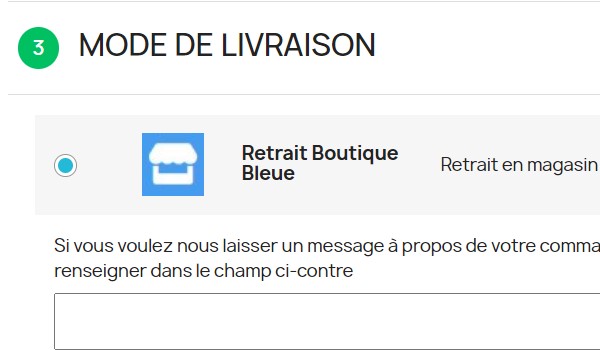
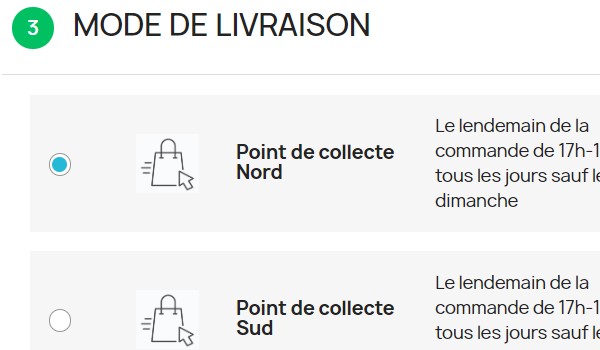
  • only sees the carrier linked to that store at the shipping method step of checkout

If they add 2 products located in 2 different stores to the cart, they cannot place the order (a message is displayed to let them know).

Required setup:

  • create a free carrier dedicated to the store
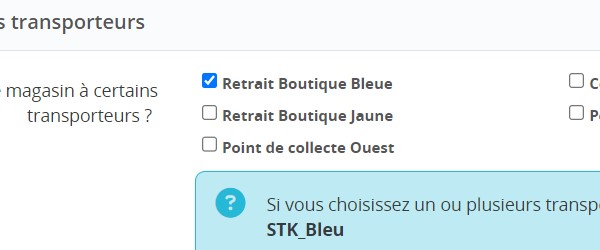
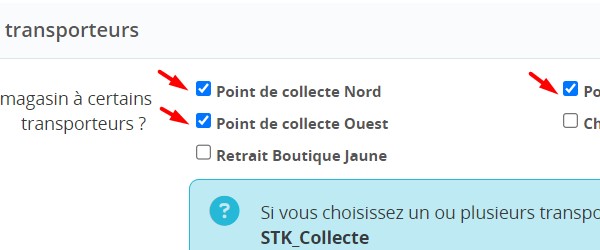
  • in the Stock per Store module configuration: select only this carrier in the store/warehouse options

    Tip: with this kind of setup, it makes sense to prevent out-of-stock orders.

    Scenario 2: several carriers for one store

    Concept:

    You have a single store (warehouse) that prepares orders, but several pickup points are available (so several PrestaShop carriers).

    Example:

    • Store 1 (the main warehouse) is linked to Carrier 1, Carrier 2, Carrier 3, etc.

    Your customer:

    • chooses in-store pickup on the product page (only one option available)
    • can collect their order from any pickup point (carrier) linked to the store/warehouse at the shipping method step of checkout

    Required setup:

    • create at least 2 carriers dedicated to in-store pickup
    • in the Stock per Store module configuration: select all carriers dedicated to in-store pickup in the store/warehouse options

      Delivery

      Note: you do not need to configure the Stock per Store module if all carriers set up in PrestaShop should be shown for delivery. By default, the module does not change PrestaShop's native behavior.

      However, if you only want to show one or a few carriers, please read scenario 1 or 2 below.

      Scenario 1: a single delivery carrier

      Concept:

      Only one carrier handles delivery.

      Example:

      • Colissimo, TNT, Chronopost, etc.

      Your customer:

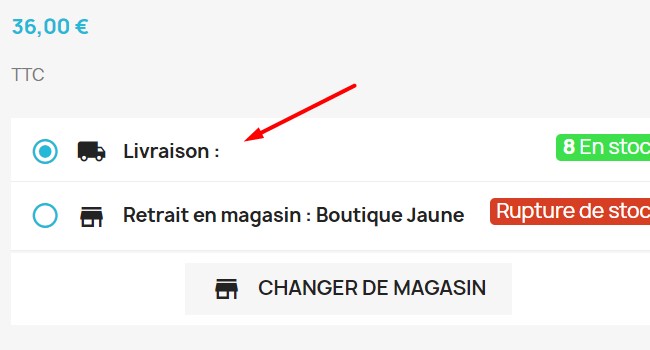
      • chooses the delivery option on the product page
      • can add any product available for delivery
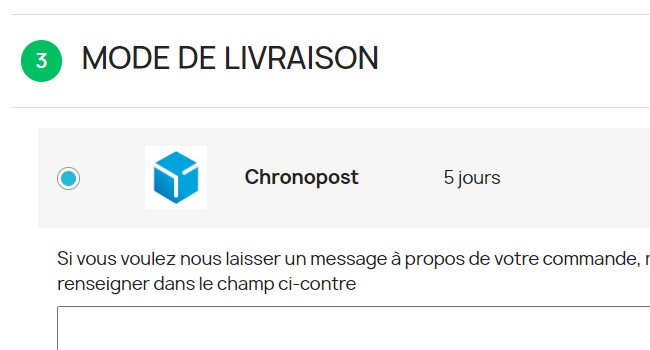
      • only sees one carrier at the shipping method step of checkout

      Required setup:

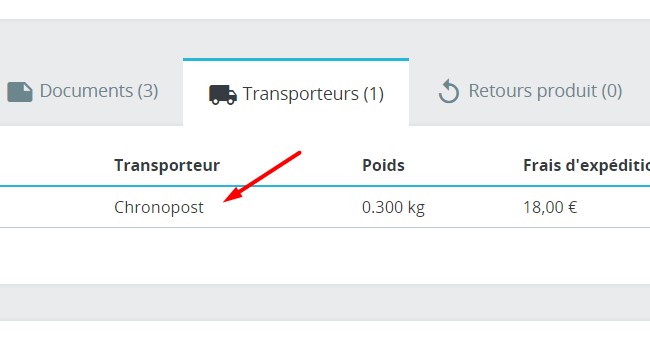
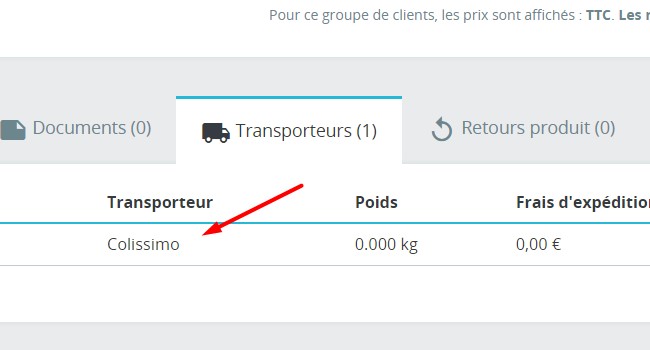
      • create 1 carrier dedicated to delivery (it can be linked to an official module such as Colissimo, TNT, etc.)
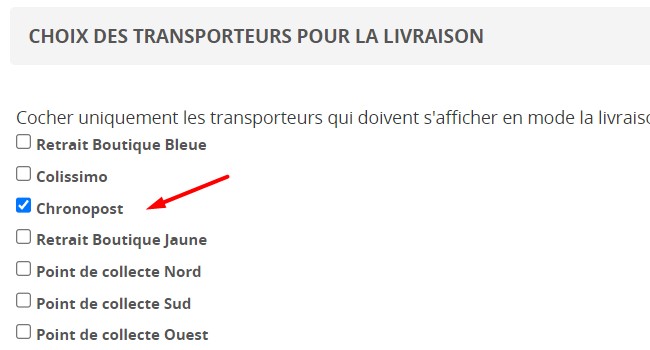
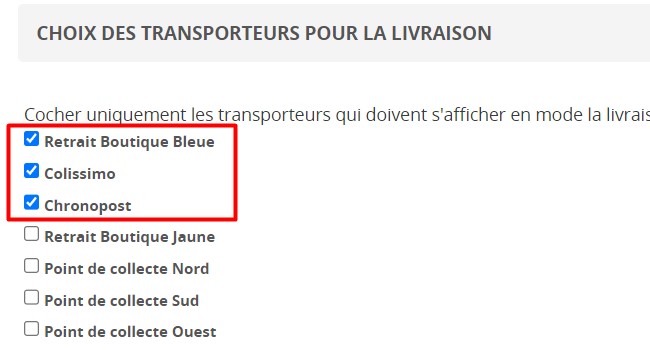
      • in the Stock per Store module configuration: select the delivery carrier in the module's "Settings" tab

        Scenario 2: several delivery carriers

        Concept:

        Several carriers can handle delivery, including in-store pickup.

        Example:

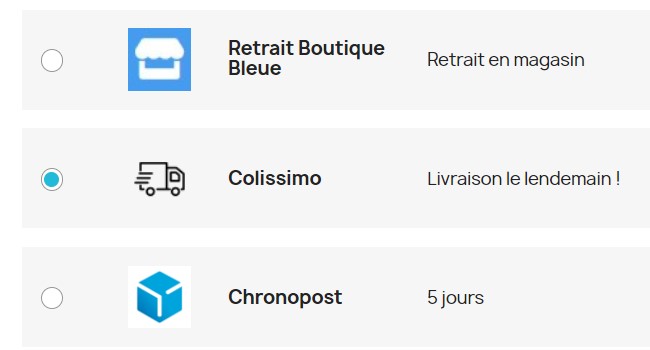
        • Colissimo, TNT, Chronopost, etc.
        • Pickup points, Store 1, Store 2, etc.

        Your customer:

        • chooses the delivery option on the product page
        • can add any product available for delivery
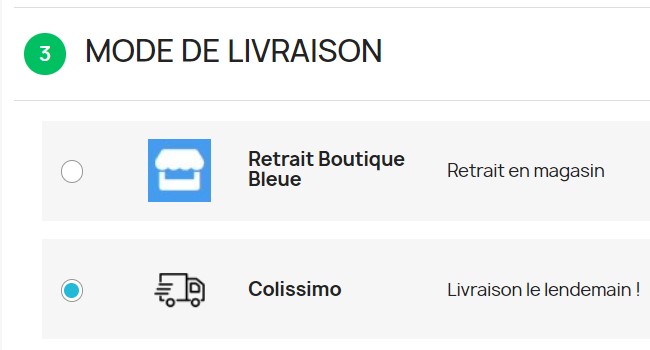
        • selects the carrier of their choice at the shipping method step of checkout

        Required setup:

          • create as many carriers as you need (home delivery, pickup, linked to an official module such as Colissimo, TNT, etc.)
          • in the Stock per Store module configuration: select the delivery carriers in the module's "Settings" tab