Inventory Module

Updated on 10/12/2026

Good to know

- While an inventory is in progress, if you sell a product included in it (and only in that case), the recorded quantity is updated automatically.

- You can have several inventories in progress at the same time. However, they must not contain the same products.

- Make sure to distinguish between in-progress and closed inventories:

  • In-progress inventories are essentially drafts. Changes are saved automatically, so you can come back to them at any time without worrying about saving. However, they do not update your stock quantities yet.
  • When you close an inventory, all stock movements are applied and the quantities are saved in PrestaShop.

Create an inventory

Go to the New Inventory menu.

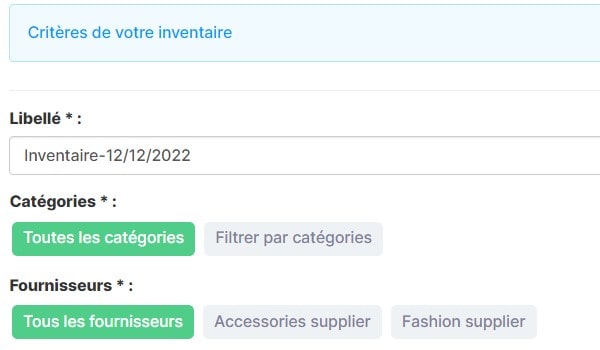
The default name is "Inventory" followed by today's date. We recommend renaming it to something more descriptive.

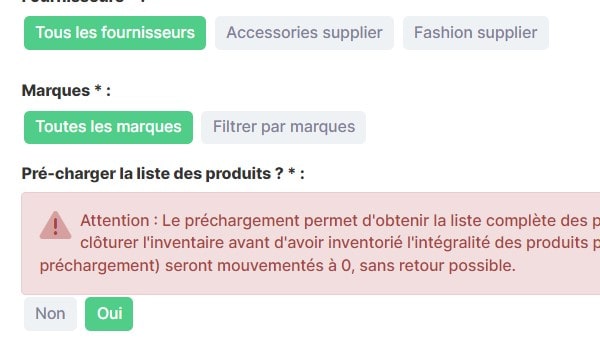
You can choose various criteria.
If you don't select anything, your inventory will be completely open: any product in your catalog can be added to it.
If you choose a filter, only products matching it can be included in the inventory.

Important: the "Preload product list?" option matters.

If you choose Yes, all products matching your filters will be listed with a quantity of 0 until they are counted. You must therefore count ALL of them before closing the inventory. Otherwise, any listed products you haven't counted will be saved with a quantity of zero.

You can save the inventory by clicking "Create", or start it right away by clicking "Create and start".

Start the inventory

The selected filters are shown in the top banner.

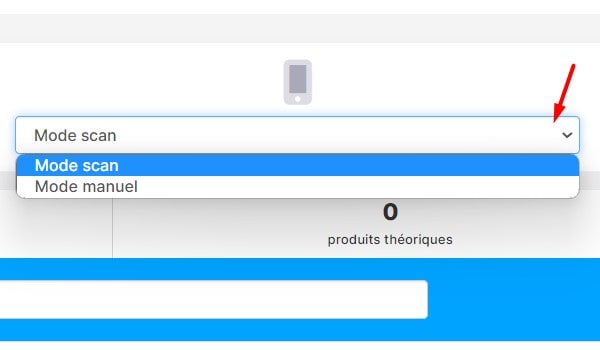
You can choose between scan mode and manual mode:

- scan mode: the last scanned product moves to the top of the list. Each scan increases the quantity.

- manual mode: the list keeps its order, and once you enter a quantity, the cursor automatically jumps to the next product's quantity, so you can type in the quantities for each product one after another.

In either mode, you can always enter a quantity manually or scan the product (each additional scan of the same product increases the quantity accordingly).
In-progress inventories

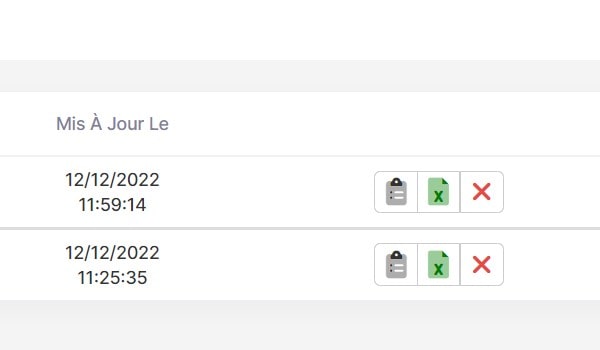
The 3 icons on the right let you:

- open the inventory (as a reminder, changes are saved automatically)

- export it to CSV (list of the inventory's products with their starting quantities, not the ones being edited).
This option is also available from within the inventory.

- delete the inventory (this cannot be undone).

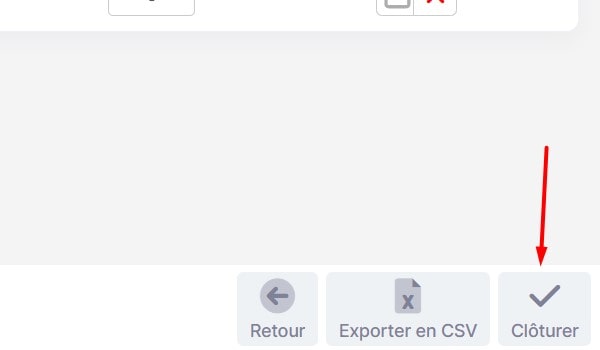
Close an inventory

When you close an inventory, a confirmation message is displayed.

Closing generates the necessary stock movements and saves your new quantities. This cannot be undone (unless you carry out a new inventory).

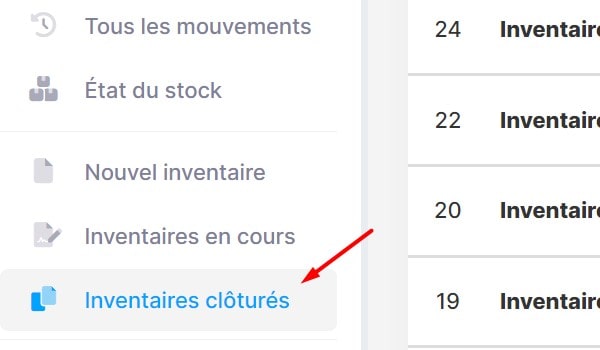
Once closed, the inventory is moved to the Closed Inventories menu.

Note: the CSV export of a closed inventory contains both the starting stock and the final saved stock.