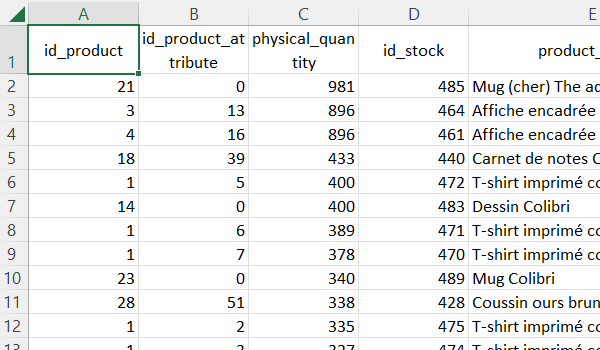
- The first row of the CSV file must contain the column headers.
- The field separator must be a semicolon ";" or a comma ","
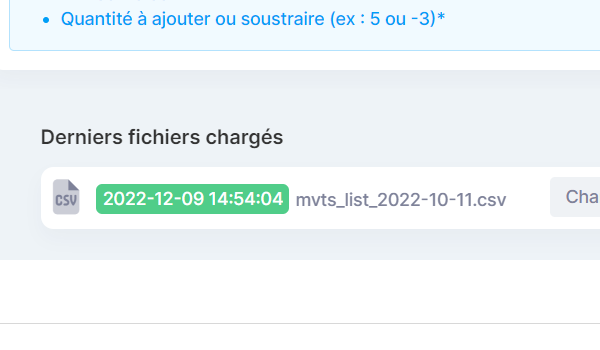
- The file must contain 3 required fields: Product ID, Combination ID, Quantity to add or subtract (e.g. 5 or -3)
Please note:
- The file may contain other fields, which will simply be ignored
- Column order does not matter, as a mapping step is offered before the import
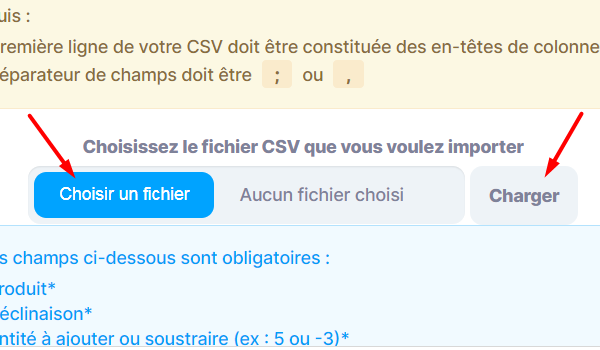
Simply click the  button to choose a file from your computer.
Once the file is selected, the  button uploads the file to the server to prepare the import list.
Please note: only CSV files separated by ; or , are accepted.
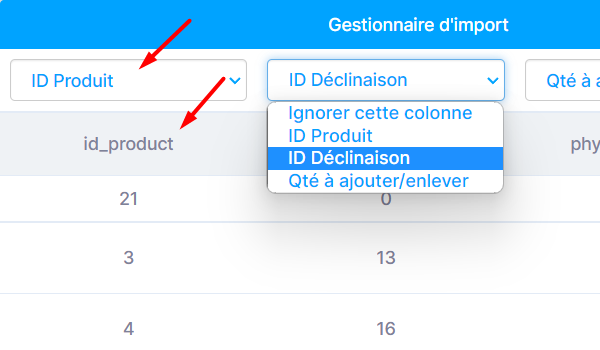
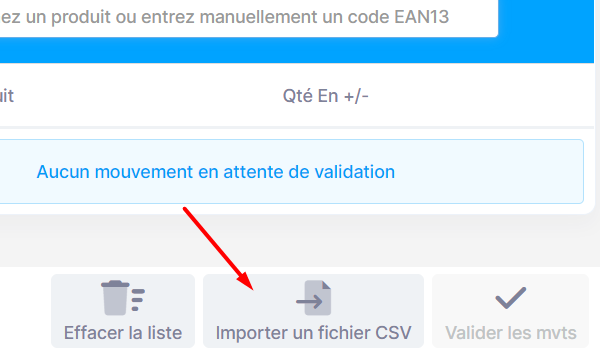
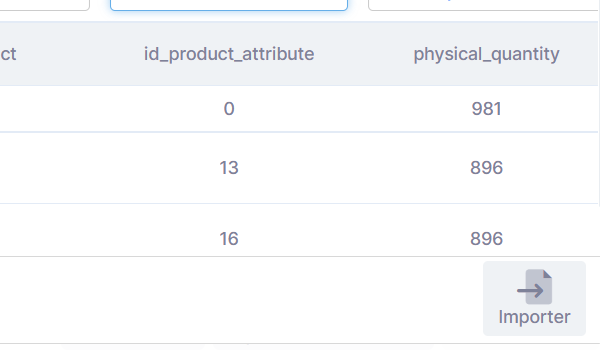
Once the mapping is done, the  button loads all the rows of the CSV file into the Stock In / Out view.
Please note: the import is not applied immediately. The product list is loaded just like a regular addition in the Stock In / Out view. After checking it, click "Validate movements" to apply the stock movements.
You can reuse a previously uploaded CSV file from the "Recently Uploaded Files" list.
Available buttons:
 reloads the CSV file into the interface
 downloads the CSV file to your computer
 removes the file from the history