Loyalty at the Till

Viewing Loyalty Points

Reminder: loyalty points can only be earned by identified customers (not by walk-in customers).

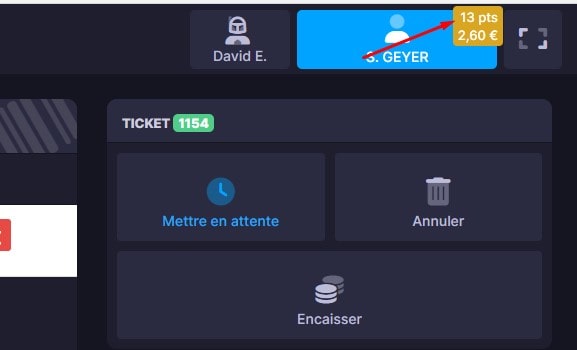
A customer's points balance is visible as soon as you select them in the till (the total points and their value are shown in orange next to their name).

Earning Loyalty Points on Purchases

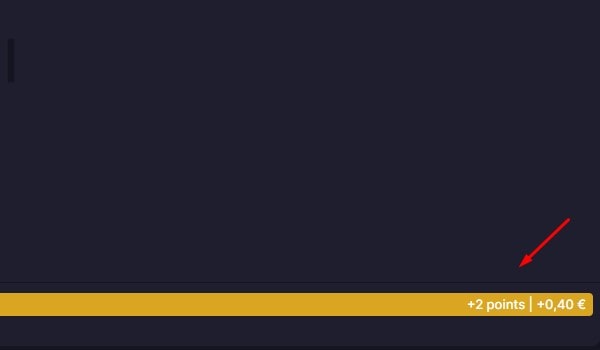
By default, loyalty points are earned with every purchase. The total is shown at the bottom, in the discounts area.

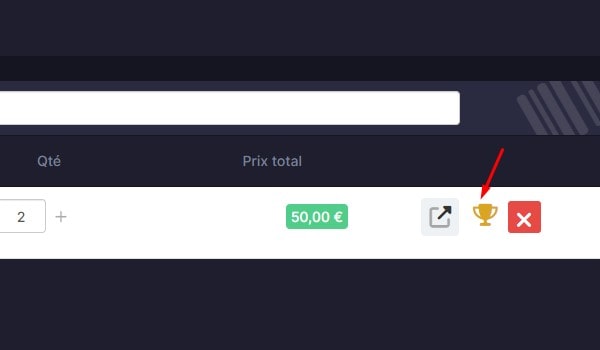
You can, however, disable points for a specific line by clicking its "cut" icon.
(Simply click it again to re-enable it.)

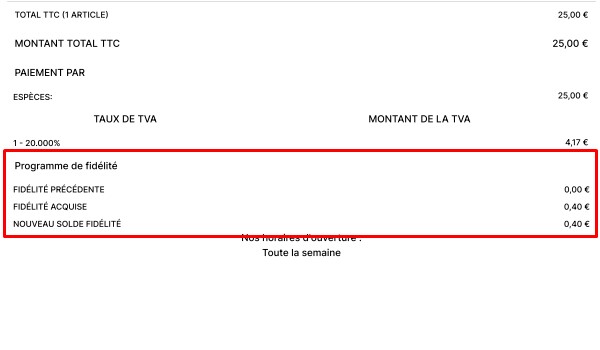
Once the sale is completed, the very bottom of the receipt shows the customer's previous points, the points earned on this purchase and their new loyalty points total.

Converting Loyalty Points

Reminder: you can set conditions and limits on the use of a loyalty voucher (minimum purchase, validity period, etc.). See the Loyalty Configuration tutorial

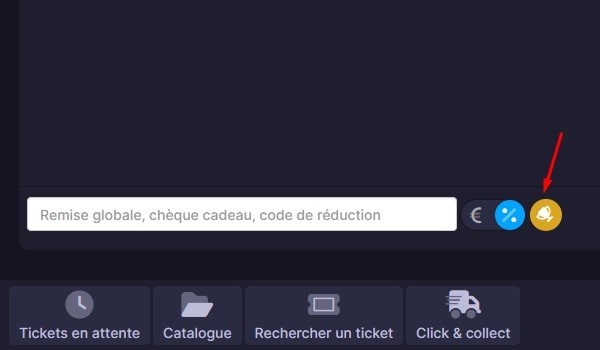
If a customer has points they want to convert into a discount voucher, simply click the icon next to the global discounts in the till.

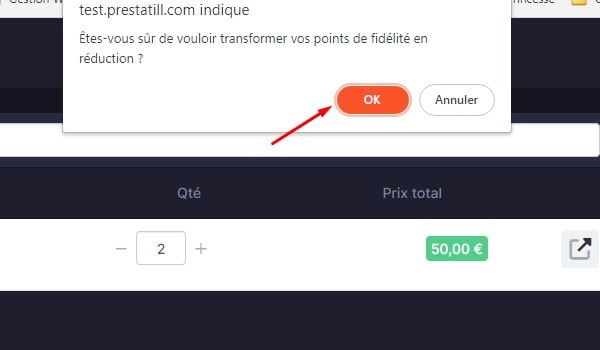
A window opens asking you to confirm the conversion.
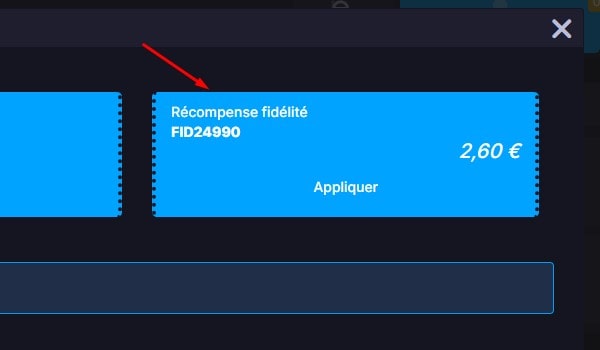
The value of the points is then turned into a discount voucher, displayed at the bottom right in the discounts area, and can be used straight away in the till.

Please note: once points have been converted, this cannot be undone, unless you manually re-credit the points as described below and delete the generated voucher in the PrestaShop Back Office.
If the order is not completed, the voucher of course remains available: you will find it in the customer area of the till, under the "Vouchers" tab.

The same applies to any remaining balance on a discount voucher.

Adding/Removing Points Manually

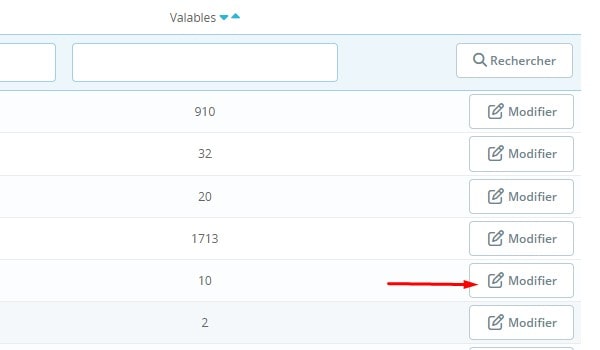
You can view and edit customers' loyalty points from the "Loyalty points" menu in the PrestaShop Back Office.
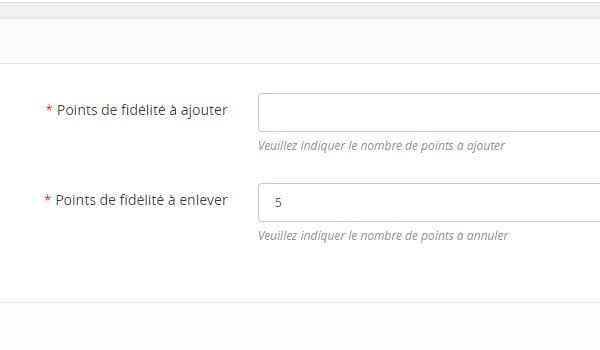
Select the customer, click Edit, enter the points to add or remove, then save.